Skip to content
  • Facebook
  • X Platform
  • Instagram
  • Youtube
John C's Place a blog focusing on tech, health, and lifestyle

John C's Place

Tech Reviews, AI Tools & Practical Guides for Working Professionals

  • Home
  • Tech Talk
  • AI Tools
  • Health & Wellness
  • Lifestyle
  • Entertainment
  • Reviews
  • Resources
  • Newsletter
  • Toggle search form
  • iOS 18.5: Must-See Features,
    iOS 18.5: Must-See Features, FaceTime Fixes & Exciting Updates You Can’t Miss! Lifestyle
  • ultimate guide to setting up your nintendo switch 2 data transfer parental controls virtual game cards
    Ultimate Guide to Setting Up Your Nintendo Switch 2: Data Transfer, Parental Controls & Virtual Game Cards Explained Lifestyle
  • image 12
    The Importance of Regular Breaks for Productivity and Well-Being Health
  • concerning ai safety exposing metas alarming content standards for chatbots designed for kids
    Concerning AI Safety: Exposing Meta’s Alarming Content Standards for Chatbots Designed for Kids Lifestyle
  • It appears that the Rabbit R1 was merely an Android application from the start.
    It Appears that the Rabbit R1 was merely an Android Application from the Start. Technology
  • Image Editing
    Google Gemini’s New AI-Powered Image Editing Feature Unleash Your Creativity: Artificial Intelligence
  • Has AI Reached a Plateau?
    Has AI reached a plateau? Thoughts
  • A More Affordable Tesla is Now Available Again Should You Get One?
    A More Affordable Tesla is now available again. Technology
Screenshots

Ultimate Guide to Taking Screenshots on Android: Explore 5 Easy Methods & Tips!

Posted on March 11, 2025April 6, 2026 By John Corcione No Comments on Ultimate Guide to Taking Screenshots on Android: Explore 5 Easy Methods & Tips!

Taking screenshots on your Android device might seem straightforward at first, but did you know there are multiple ways to do it?

Whether you’re sharing memes, saving important information, or capturing that perfect pet photo, understanding your options can save you time and frustration.

In this ultimate guide, we’ll explore 5 easy methods for taking screenshots that work across various manufacturers, from the popular Google Pixel to the versatile Samsung Galaxy.

Whether you’re a tech-savvy enthusiast or a casual user, these methods ensure you’ll always have the perfect way to capture your digital moments.

Let’s dive into the world of screenshots and make those captures as simple as a tap or swipe!

Try Hostinger Webhosying get a website as low as $3.99!

Ultimate Guide to Taking Screenshots on Android: Explore 5 Easy Methods & Tips!

5 Tips and Strategies for SEO: Proven Strategies for High-Ranking Content

Table of Contents

Toggle

  • Key Takeaways
    • Standard Methods for Taking Screenshots
  • Standard Method That Works Like a Charm
  • Ask for Some Help
  • Swipe Your Way to Screen Shots
  • Go Old School with the S Pen
  • Capture the Whole Page
  • Bonus: Screen Recording Basics
    • Save and Share with Ease
    • Advanced Techniques and Tips for Android Users

Key Takeaways

  • There are multiple methods to take screenshots on Android, accommodating different device types and user preferences.
  • Voice commands and gesture controls offer innovative ways to capture screenshots without traditional button combinations.
  • Advanced features like scrolling screenshots and screen recording enhance functionality for users seeking more than just static images.

Standard Methods for Taking Screenshots

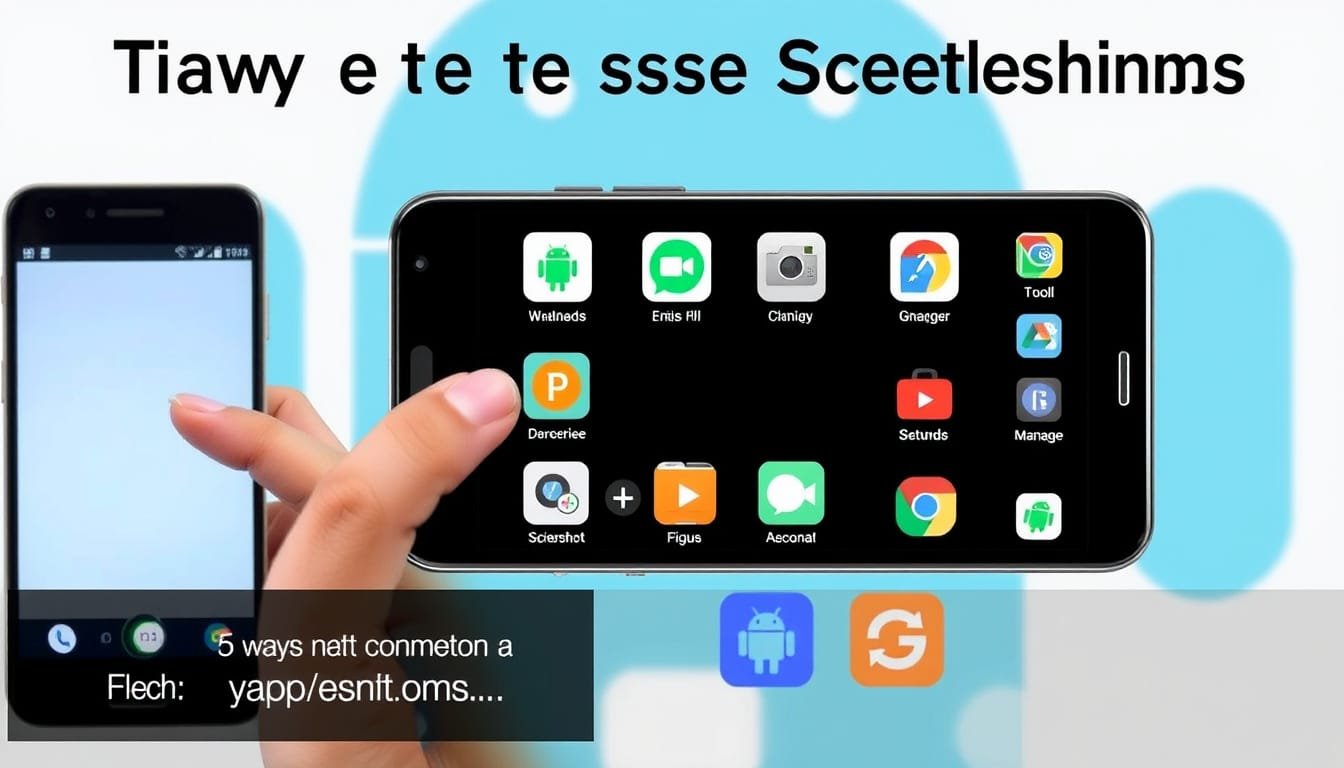
5 Easy Ways to Capture Screenshots on Android Devices

Taking screenshots on your Android device doesn’t have to feel like trying to solve a Rubik’s cube blindfolded.

Whether you’re trying to save an epic meme, capture a conversation, or share your latest game score, here’s how to do it like a pro!

Standard Method That Works Like a Charm

The magic combination for most Android devices is pressing Power + Volume Down simultaneously.

Timing is key, so it may take a couple of tries to nail it, especially if you’re in a hurry to share your victory.

Ask for Some Help

Feeling lazy?

Just say, ‘Hey Google, take a screenshot!’ Talk about convenience!

Google Assistant has your back and will do the job hands-free.

Swipe Your Way to Screen Shots

If you own a Google Pixel, you can trigger a screenshot by swiping up from the bottom edge of the screen.

Samsung Galaxy users can opt for a fancy palm swipe to the side – just make sure that feature is activated in your settings!

Go Old School with the S Pen

For Samsung enthusiasts sporting an S Pen, taking screenshots becomes an artistic task.

Just click the S Pen button while hovering over what you want to capture!

Capture the Whole Page

Want to snag long conversations or entire recipe pages?

Use the scrolling screenshot feature to capture beyond the visible screen.

With just a few taps, you can save the whole content.

Bonus: Screen Recording Basics

Did you know you can also record your screen?

Just dive into your Quick Settings menu, find the screen record option, and let the magic happen!

Save and Share with Ease

To locate your screenshots, check out the Photos app or your device’s screenshot folder.

And if you also need tips for other platforms, find our guides for Windows and Mac linked at the end.

With all these methods, you will never miss a moment again!

Want to keep updated on the latest tips?

Subscribe to our blog and capture life’s best moments!

Advanced Techniques and Tips for Android Users

Feeling adventurous?

Let’s dive into some advanced techniques for taking screenshots like a pro on your Android device.

For starters, if you’re in a particularly crowded environment or just feeling fancy, consider using voice commands with Google Assistant to snap a pic.

Just say, ‘Hey Google, take a screenshot!’ – easy as pie!

Now, let’s talk about gesture controls.

On newer models, such as the Google Pixel, you can perform a quick swipe up from the bottom of the screen to access your screenshot options — no buttons needed!

And Samsung users, don’t forget about the palm swipe feature.

It’s not just cool; it’s practical.

Just make sure it’s enabled in settings, or you’ll be swiping in vain!

Do you own an S Pen?

Great!

Just hover it over what you want to capture and click the button.

It’s almost like magic — you don’t even have to touch the screen!

Capture scrolling screenshots for those lengthy threads or recipes that you’d rather not photograph in pieces.

And for those seeking to record tutorials or gameplay, initiate screen recording via Quick Settings.

Finally, once you’ve captured your screen gems, head to your Photos app to find them easily.

If you’re also juggling other devices, check out our comprehensive guides for Windows and Mac too.

Keep snapping those moments!

Please support us across all platforms! Click here to explore and follow us on our other platforms. Your support helps us grow and continue providing great content!

Lifestyle, Reviews Tags:Health Lifestyle. Reviews, Tech Talk

Post navigation

Previous Post: Congress Moves to Ban DeepSeek: What It Means for AI Innovation and U.S.-China Relations
Next Post: Apple Music vs Spotify: Which Music Streaming Service Reigns Supreme in 2025?

Related Posts

  • lyft silver revolutionizing ridesharing for seniors with enhanced features and support
    Lyft Silver: Revolutionizing Ridesharing for Seniors with Enhanced Features and Support Lifestyle
  • prepare for windows 10 support ending how to secure your pc with extended updates
    Prepare for Windows 10 Support Ending: How to Secure Your PC with Extended Updates Lifestyle
  • Google Nest
    Maximize Your Google Nest Experience: 4 Essential Tips for Smart Home Mastery Lifestyle
  • ios 26 unveils gamechanging features to protect against scam texts your ultimate guide
    iOS 26 Unveils Game-Changing Features to Protect Against Scam Texts: Your Ultimate Guide! Lifestyle
  • Achieving Mental Health and Balance in Daily Life
    Achieving Mental Health and Balance in Daily Life Health
  • Smartphone Case Brands:
    Best Smartphone Case Brands: THE Guide to the Top 10 Tech Talk

Related Articles

Echo Show 5 Certified Refurbished Echo Show 5 (3rd Gen, 2023) Smart Display A Comprehensive Review Reviews
Smartwatch Top 3 Smartwatch Roundup Review Lifestyle Insights
Agile Project Management: The Key to Successful Team Collaboration Tech Talk
ai pic 2 scaled Emerging AI Technologies in 2023: Unveiling the Future Tech Talk
Android Updates Exciting Android Updates Ahead: The Android Show Takes Center Stage at I/O 2025! Lifestyle
Gamecube Controller Is the GameCube Controller Worth It for the Nintendo Switch 2? A Deep Dive into Modern Gaming Compatibility Lifestyle

Let's engage and leave your comments.Cancel reply

This site uses Akismet to reduce spam. Learn how your comment data is processed.

About John

Senior IT & Telecom PM. 20 years in tech across T-Mobile, JPMorgan Chase, and Citibank. I write about the tools, AI, and practical tech that actually moves the needle for working professionals.

More about me →

Stay In The Loop

New articles on tech, AI, and practical tools — delivered when I publish. No spam.

📚 John Recommends

Audible Free Trial

I listen on my commute. One free book, cancel anytime — no catch.

Start Free Trial →

Affiliate link — I earn a small commission

⌚ John Recommends

Garmin Venu 4

Best health-focused smartwatch I've tested. Sleep, stress, HRV — all solid.

View on Amazon →

Affiliate link — I earn a small commission

💼 Work With Me

Senior IT/Telecom PM & Scrum Master

20 years at T-Mobile, JPMorgan Chase & Citibank. Available for project leadership, consulting, and contract roles.

Get In Touch →

Browse Topics

  • Artificial Intelligence (36)
  • Blog (24)
  • Entertainment (44)
  • Health (9)
  • Lifestyle (143)
  • Lifestyle Insights (11)
  • Mental Wellness (1)
  • Product Reviews (5)
  • Reviews (253)
  • Sports (2)
  • Tech Talk (54)
  • Technology (126)
  • Thoughts (75)
  • Uncategorized (1)
  • "The Vital Importance of Data Privacy in Today's Digital Age
    The Vital Importance of Data Privacy in Today’s Digital Age Tech Talk
  • ultimate guide to prime day 2025 unmissable deals on playstation xbox games
    Ultimate Guide to Prime Day 2025: Unmissable Deals on PlayStation & Xbox Games! Lifestyle
  • beware of sparkcat new malware targets cryptocurrency wallets on apple and google app stores
    Beware of SparkCat: New Malware Targets Cryptocurrency Wallets on Apple and Google App Stores! Lifestyle
  • Upgrading My Phone
    The Trials and Tribulations of Upgrading My Phone Technology
  • The Electric State
    Unveiling ‘The Electric State’: Netflix’s Retro-Futuristic Adventure Hits Screens March 14! Entertainment
  • Rytr Ai Writing Tool Rytr
    Free Your Creativity with Rytr: The Future of AI Writing Tools Technology
  • meta faces groundbreaking trial over child safety allegations what it means for social media regulation
    Meta Faces Groundbreaking Trial Over Child Safety Allegations: What It Means for Social Media Regulation Tech Talk
  • Beatles
    The Beatles’ last song, enhanced with AI, nominated for a Grammy Lifestyle Insights

John C’s Place

Tech reviews, AI tools, and practical guides for working professionals. No fluff — just useful content when I publish something worth reading.

Legal

  • Terms of Use
  • Disclosure
  • Affiliate Disclosure
  • Privacy Policy

Copyright © 2026 John C's Place.

Powered by PressBook Premium theme

Loading Comments...

You must be logged in to post a comment.