Skip to content
  • Facebook
  • X Platform
  • Instagram
  • Youtube
John C's Place a blog focusing on tech, health, and lifestyle

John C's Place

Tech Reviews, AI Tools & Practical Guides for Working Professionals

  • Home
  • Tech Talk
  • AI Tools
  • Health & Wellness
  • Lifestyle
  • Entertainment
  • Reviews
  • Resources
  • Newsletter
  • Toggle search form
  • Unlocking Smart Homes: iOS 18.3 Update to Revolutionize Robot Vacuum Integration!
    Unlocking Smart Homes: iOS 18.3 Update to Revolutionize Robot Vacuum Integration! Entertainment
  • lost connections the emotional fallout from openais gpt4o shutdown on valentines day
    Lost Connections: The Emotional Fallout from OpenAI’s GPT-4o Shutdown on Valentine’s Day Artificial Intelligence
  • AMD's FSR 3.1 Debuts: Sony's PlayStation PC Games Lead the Adoption
    AMD’s FSR 31 Debuts: Sony’s PlayStation PC Games Leads the Embrace Technology
  • AI Ads
    Beware of AI Ads: They’re After Your Attention Span Technology
  • unlocking emotions how emteq labs innovative sense glasses are revolutionizing emotional tracking and privacy concerns
    Unlocking Emotions: How Emteq Labs’ Innovative Sense Glasses Are Revolutionizing Emotional Tracking and Privacy Concerns Lifestyle
  • transform your home audio experience unleash immersive sound with the jbl bar 500mk2 soundbar
    Transform Your Home Audio Experience: Unleash Immersive Sound with the JBL Bar 500MK2 Soundbar Reviews
  • reddits new policy a major blow to archived content access and user discussions
    Reddit’s New Policy: A Major Blow to Archived Content Access and User Discussions Lifestyle
  • Apple Natural Language Search
    Unlocking the Power of Natural Language Search in Apple’s App Store: A Game Changer for iOS 18.1 Users Entertainment
Screenshots

Ultimate Guide to Taking Screenshots on Android: Explore 5 Easy Methods & Tips!

Posted on March 11, 2025April 6, 2026 By John Corcione No Comments on Ultimate Guide to Taking Screenshots on Android: Explore 5 Easy Methods & Tips!

Taking screenshots on your Android device might seem straightforward at first, but did you know there are multiple ways to do it?

Whether you’re sharing memes, saving important information, or capturing that perfect pet photo, understanding your options can save you time and frustration.

In this ultimate guide, we’ll explore 5 easy methods for taking screenshots that work across various manufacturers, from the popular Google Pixel to the versatile Samsung Galaxy.

Whether you’re a tech-savvy enthusiast or a casual user, these methods ensure you’ll always have the perfect way to capture your digital moments.

Let’s dive into the world of screenshots and make those captures as simple as a tap or swipe!

Try Hostinger Webhosying get a website as low as $3.99!

Ultimate Guide to Taking Screenshots on Android: Explore 5 Easy Methods & Tips!

5 Tips and Strategies for SEO: Proven Strategies for High-Ranking Content

Table of Contents

Toggle

  • Key Takeaways
    • Standard Methods for Taking Screenshots
  • Standard Method That Works Like a Charm
  • Ask for Some Help
  • Swipe Your Way to Screen Shots
  • Go Old School with the S Pen
  • Capture the Whole Page
  • Bonus: Screen Recording Basics
    • Save and Share with Ease
    • Advanced Techniques and Tips for Android Users

Key Takeaways

  • There are multiple methods to take screenshots on Android, accommodating different device types and user preferences.
  • Voice commands and gesture controls offer innovative ways to capture screenshots without traditional button combinations.
  • Advanced features like scrolling screenshots and screen recording enhance functionality for users seeking more than just static images.

Standard Methods for Taking Screenshots

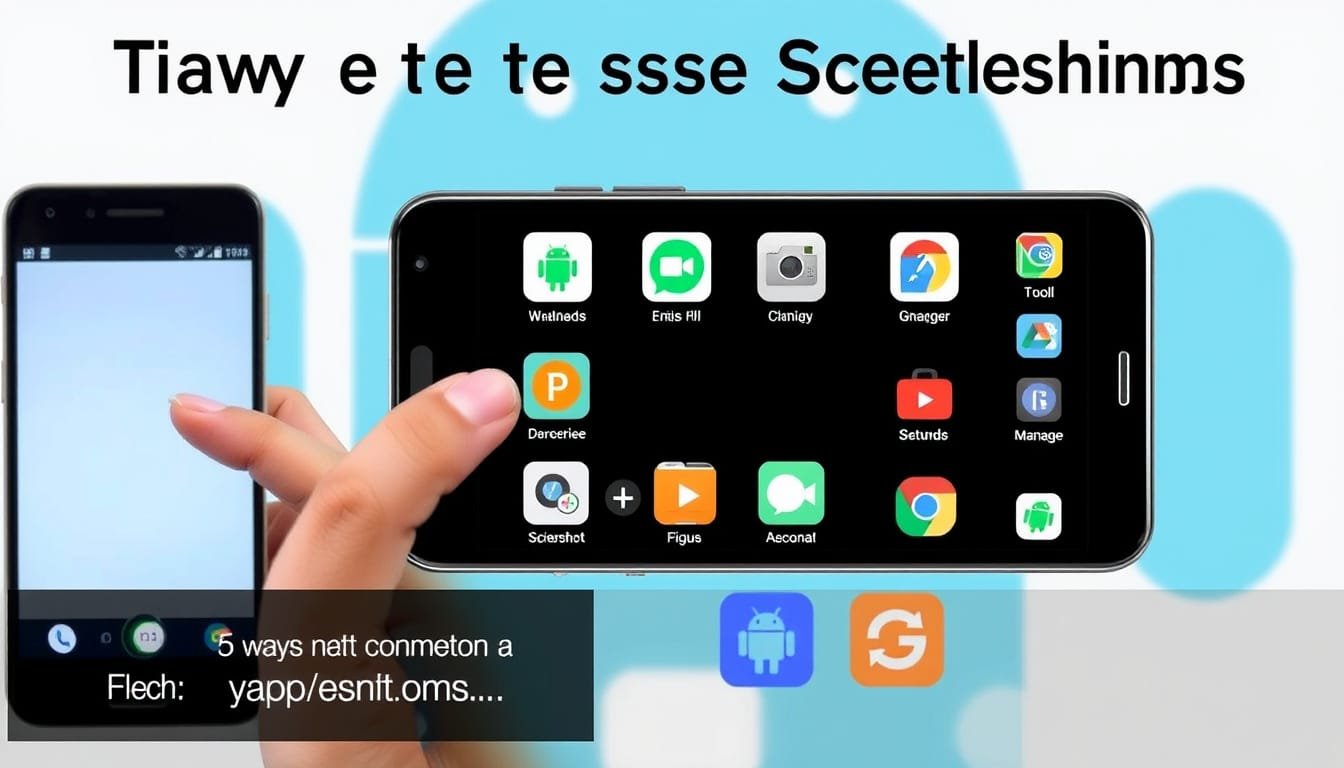
5 Easy Ways to Capture Screenshots on Android Devices

Taking screenshots on your Android device doesn’t have to feel like trying to solve a Rubik’s cube blindfolded.

Whether you’re trying to save an epic meme, capture a conversation, or share your latest game score, here’s how to do it like a pro!

Standard Method That Works Like a Charm

The magic combination for most Android devices is pressing Power + Volume Down simultaneously.

Timing is key, so it may take a couple of tries to nail it, especially if you’re in a hurry to share your victory.

Ask for Some Help

Feeling lazy?

Just say, ‘Hey Google, take a screenshot!’ Talk about convenience!

Google Assistant has your back and will do the job hands-free.

Swipe Your Way to Screen Shots

If you own a Google Pixel, you can trigger a screenshot by swiping up from the bottom edge of the screen.

Samsung Galaxy users can opt for a fancy palm swipe to the side – just make sure that feature is activated in your settings!

Go Old School with the S Pen

For Samsung enthusiasts sporting an S Pen, taking screenshots becomes an artistic task.

Just click the S Pen button while hovering over what you want to capture!

Capture the Whole Page

Want to snag long conversations or entire recipe pages?

Use the scrolling screenshot feature to capture beyond the visible screen.

With just a few taps, you can save the whole content.

Bonus: Screen Recording Basics

Did you know you can also record your screen?

Just dive into your Quick Settings menu, find the screen record option, and let the magic happen!

Save and Share with Ease

To locate your screenshots, check out the Photos app or your device’s screenshot folder.

And if you also need tips for other platforms, find our guides for Windows and Mac linked at the end.

With all these methods, you will never miss a moment again!

Want to keep updated on the latest tips?

Subscribe to our blog and capture life’s best moments!

Advanced Techniques and Tips for Android Users

Feeling adventurous?

Let’s dive into some advanced techniques for taking screenshots like a pro on your Android device.

For starters, if you’re in a particularly crowded environment or just feeling fancy, consider using voice commands with Google Assistant to snap a pic.

Just say, ‘Hey Google, take a screenshot!’ – easy as pie!

Now, let’s talk about gesture controls.

On newer models, such as the Google Pixel, you can perform a quick swipe up from the bottom of the screen to access your screenshot options — no buttons needed!

And Samsung users, don’t forget about the palm swipe feature.

It’s not just cool; it’s practical.

Just make sure it’s enabled in settings, or you’ll be swiping in vain!

Do you own an S Pen?

Great!

Just hover it over what you want to capture and click the button.

It’s almost like magic — you don’t even have to touch the screen!

Capture scrolling screenshots for those lengthy threads or recipes that you’d rather not photograph in pieces.

And for those seeking to record tutorials or gameplay, initiate screen recording via Quick Settings.

Finally, once you’ve captured your screen gems, head to your Photos app to find them easily.

If you’re also juggling other devices, check out our comprehensive guides for Windows and Mac too.

Keep snapping those moments!

Please support us across all platforms! Click here to explore and follow us on our other platforms. Your support helps us grow and continue providing great content!

Lifestyle, Reviews Tags:Health Lifestyle. Reviews, Tech Talk

Post navigation

Previous Post: Congress Moves to Ban DeepSeek: What It Means for AI Innovation and U.S.-China Relations
Next Post: Apple Music vs Spotify: Which Music Streaming Service Reigns Supreme in 2025?

Related Posts

  • nintendo switch 2 overheating alert optimal play temperatures revealed
    Nintendo Switch 2 Overheating Alert: Optimal Play Temperatures Revealed! Lifestyle
  • Dunk the Halls
    Dunk the Halls: NBA’s Christmas Day Special on Disney Plus to Rival NFL’s Holiday Domination! Reviews
  • Samsung'
    Samsung’s ‘Screens Everywhere’ Strategy: Revolutionizing Home Appliances with Smart Displays Entertainment
  • HMD Barbie Phone
    HMD’s Barbie Flip Phone Makes a Bold Statement Reviews
  • Handytraxx portable record players
    Spin in Style: Korg Unveils New Handytraxx Portable Record Players for DJs and Audiophiles! Reviews
  • Beats Studio Buds
    Transform Your Sound Experience: A Deep Dive into Beats Studio Buds’ Noise-Canceling Technology Product Reviews

Related Articles

discover the top apple watch models of 2026 series 11 se 3 and ultra 3 compared Discover the Top Apple Watch Models of 2026: Series 11, SE 3, and Ultra 3 Compared! Reviews
Handytraxx portable record players Spin in Style: Korg Unveils New Handytraxx Portable Record Players for DJs and Audiophiles! Reviews
CES 2025 showcases cutting-edge innovations Top Innovations from CES 2025: The Future of Tech Unveiled! Reviews
revolutionize your photography with pixel 10s ai camera coach Revolutionize Your Photography with Pixel 10’s AI ‘Camera Coach’ Lifestyle
combat doomscrolling discover mindfulness with opera air the new browser redefining online wellness Combat Doomscrolling: Discover Mindfulness with Opera Air – The New Browser Redefining Online Wellness! Lifestyle
Why Apple27s New Event Planning App Misses the Mark by Excluding Android Users Why Apple’s New Event-Planning App Misses the Mark by Excluding Android Users Lifestyle

Let's engage and leave your comments.Cancel reply

This site uses Akismet to reduce spam. Learn how your comment data is processed.

About John

Senior IT & Telecom PM. 20 years in tech across T-Mobile, JPMorgan Chase, and Citibank. I write about the tools, AI, and practical tech that actually moves the needle for working professionals.

More about me →

Stay In The Loop

New articles on tech, AI, and practical tools — delivered when I publish. No spam.

📚 John Recommends

Audible Free Trial

I listen on my commute. One free book, cancel anytime — no catch.

Start Free Trial →

Affiliate link — I earn a small commission

⌚ John Recommends

Garmin Venu 4

Best health-focused smartwatch I've tested. Sleep, stress, HRV — all solid.

View on Amazon →

Affiliate link — I earn a small commission

💼 Work With Me

Senior IT/Telecom PM & Scrum Master

20 years at T-Mobile, JPMorgan Chase & Citibank. Available for project leadership, consulting, and contract roles.

Get In Touch →

Browse Topics

  • Artificial Intelligence (35)
  • Blog (24)
  • Entertainment (44)
  • Health (9)
  • Lifestyle (143)
  • Lifestyle Insights (11)
  • Mental Wellness (1)
  • Product Reviews (5)
  • Reviews (253)
  • Sports (2)
  • Tech Talk (53)
  • Technology (126)
  • Thoughts (75)
  • Uncategorized (1)
  • Drone Delivery Service
    Revolutionizing Convenience: Wing’s New Drone Delivery Service in Dallas-Fort Worth with DoorDash Entertainment
  • AMD Ryzen 9000X3D chips.
    AMD Ryzen 9000X3D Chips: Disappointing Performance Jump Technology
  • Gemini's New Scheduled Actions
    Unlock the Power of Automation: Exploring Gemini’s New Scheduled Actions Feature for Task Management Artificial Intelligence
  • Staying Ahead of the Tech Game in 2023 Guide
    Staying Ahead of the Tech Game in 2023 Guide Tech Talk
  • Unlocking Smart Homes: iOS 18.3 Update to Revolutionize Robot Vacuum Integration!
    Unlocking Smart Homes: iOS 18.3 Update to Revolutionize Robot Vacuum Integration! Entertainment
  • Language Learning
    Unlocking Language Learning: Google’s Innovative ‘Little Language Lessons’ Takes on Duolingo Lifestyle
  • Online Presence
    The Powerful Ideal Online Presence for Doctors Technology
  • TCL AI Shorts
    TCL’s AI Short Films: Exploring the Hits and Misses of New Tech in Filmmaking Entertainment

John C’s Place

Tech reviews, AI tools, and practical guides for working professionals. No fluff — just useful content when I publish something worth reading.

Legal

  • Terms of Use
  • Disclosure
  • Affiliate Disclosure
  • Privacy Policy

Copyright © 2026 John C's Place.

Powered by PressBook Premium theme


Loading Comments...
 

You must be logged in to post a comment.